The Story Behind Ignite
This is my personal workstation build. The way I like my Kali box to look, feel, and behave when I’m working. Every tool in here, every keybinding, every bar shortcut — I picked it because it fits the way I work during engagements and labs.
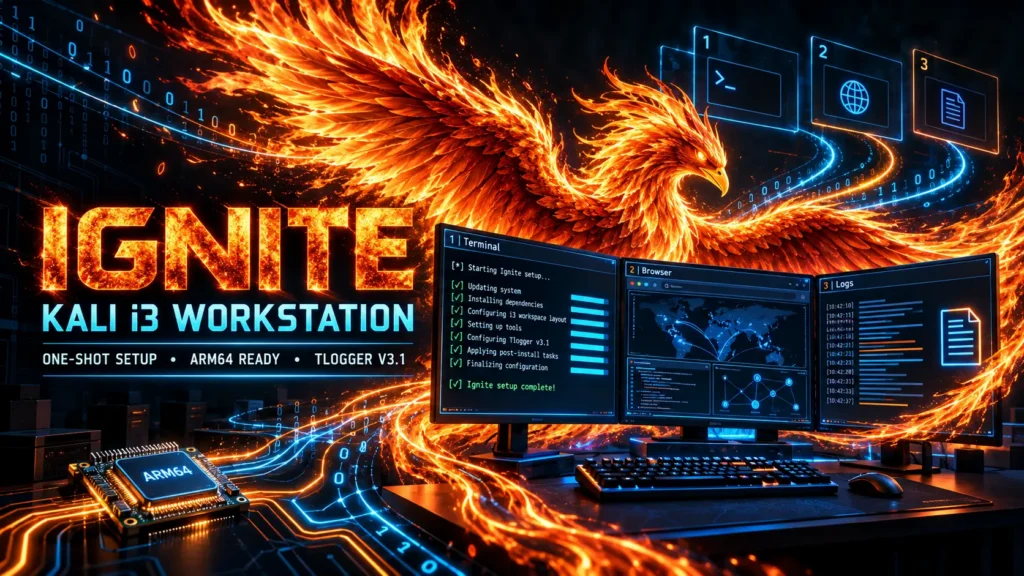
It started simple. I was going through my PEN-200 journey and kept rebuilding my VM from scratch — tweaking the desktop, reinstalling tools, reconfiguring everything manually. Every time I spun up a fresh Kali VM, I spent hours getting it back to where I wanted it. So I started scripting it. One thing led to another, and Ignite became a full installer that sets everything up in one go.
Along the way, I noticed a lot of students around me struggling with the same things — especially those running Apple Silicon. ARM64 adds an extra layer of challenge because some tools weren’t designed for that architecture yet. So I started adding patches and workarounds for those tools into Ignite. Not because there’s anything wrong with Kali — Kali is an incredible platform, and the team behind it does amazing work — but because ARM64 is still relatively new territory and some third-party tools haven’t fully caught up yet.
I originally built Ignite for PEN-200 while helping students, but I kept expanding it as I moved through other OffSec courses and found more tools that needed a hand on ARM64.
Why i3 — Tiling Over Floating
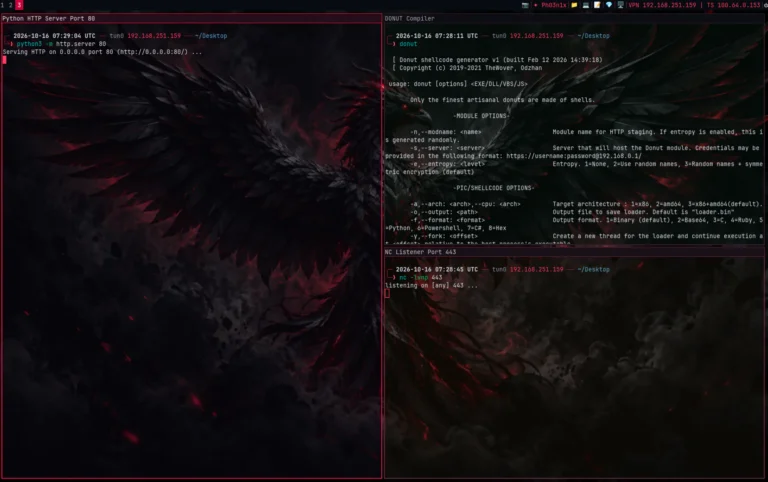
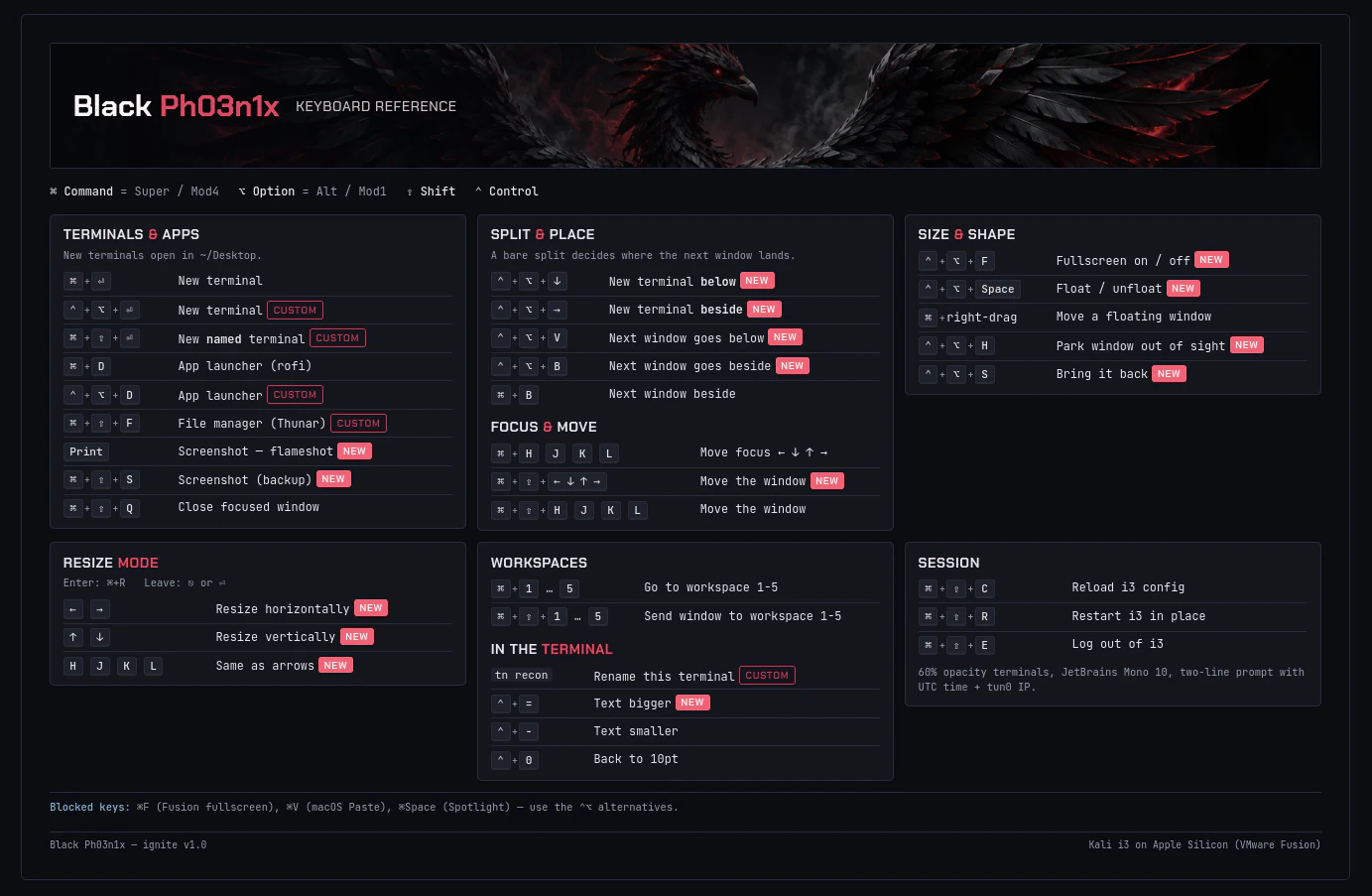
My first decision was to switch from a floating desktop to a tiling window manager. When you’re in the middle of a lab or an exam, you might have 6+ terminals open — one running a scan, one with a reverse shell, one tailing a log, one for notes. With a floating desktop, you’re constantly dragging and resizing windows. With i3, every window tiles automatically. Split horizontal, split vertical, move windows between workspaces — everything is keyboard-driven.
I set up 9 workspaces (⌘+1 through ⌘+9) so I can spread my work across different screens. Workspace 1 for recon, workspace 2 for exploitation, workspace 3 for Obsidian notes — however you want to organize it. Moving a window to another workspace is just ⌘+Shift+number.
I also added picom as a compositor with 60% transparent terminals. It’s not just for looks — when you have a terminal on top of a browser or your notes, you can still read what’s underneath. It actually helps during work. And if transparency isn’t your thing, there’s --safe-mode to run fully opaque.
Ignite also keeps browser activity on the workspace where Firefox is already running. For example, if Firefox is open on workspace 2 while you run feroxbuster on workspace 3, opening a discovered URL sends it to Firefox on workspace 2 instead of pulling the browser into your current workspace. Focus stays on workspace 3, and Firefox remains in the background, so you can inspect links without interrupting your terminal workflow.
TLoggerV3.1 — The Evolution
If you’ve been following the blog, you already know TLoggerV2. I built V2 after mentoring students who had strong technical skills but would lose their work — commands forgotten, output gone, timestamps missing, reports rebuilt from memory. V2 solved that by making documentation a byproduct of working, not a separate task.
TLoggerV3.1 is the next step. It’s now fully integrated into Ignite instead of being a standalone install script. The core idea is the same — capture every command and its output to a clean, timestamped log — but V3.1 is leaner and tighter:
- Simplified commands — V2 had
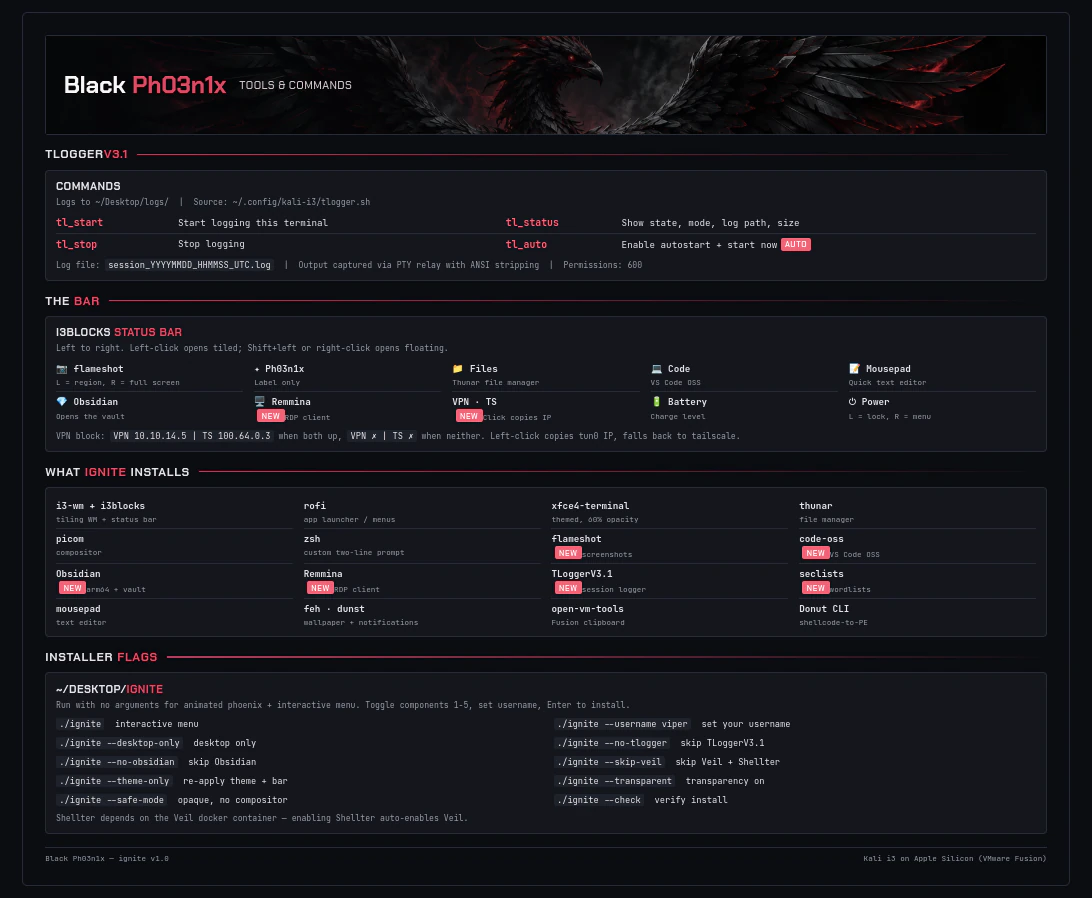
tlogger_start,tlogger_stop, and separate mode switching. V3.1 cuts it down to just 4 short commands:tl_start,tl_stop,tl_status,tl_auto. That’s it. Nothing else to remember. - Better relay — output capture is more reliable
- Integrated with the workstation — the prompt, the log format, the file naming all match the rest of the Ignite setup. Logs use
session_YYYYMMDD_HHMMSS_UTC.logwith 600 permissions. - Built into the installer — no separate
setup_tlogger.shto run. Ignite drops it in place as part of the build.
The autostart feature (tl_auto) is still the killer feature. Enable it once and forget about it. Every terminal you open from that point forward is being logged. When the exam is over, your ~/Desktop/logs/ folder has a complete record of everything you did.
Same philosophy as V2 — it’s not just a tool, it’s a habit. The point was never “cool logging.” The point is: if you’re not capturing your work as you go, you’re making your life harder when it’s time to write the report. TLoggerV3.1 just makes it automatic.
[IMAGE: screenshots/tlogger.png]
TLoggerV3.1 — session logging in action.

Why Obsidian for Notes
I’ve tried many note-taking tools. CherryTree, plain Markdown files, even Google Docs at one point. Obsidian won because of its plugin ecosystem and the way it handles linked notes. During an engagement, I want to link a found credential to the machine it came from and to the technique I used to get it. Obsidian’s graph view makes that natural.
Ignite installs the ARM64 AppImage (since there’s no official ARM64 .deb for Linux yet) and sets up a vault under ~/Documents/<username>/ with:
- An Active Directory engagement template — pre-built structure for tracking machines, credentials, pivots
- Dataview — query your notes like a database
- Templater — consistent note templates for new machines, new findings
- Advanced Tables — because markdown tables by hand are painful
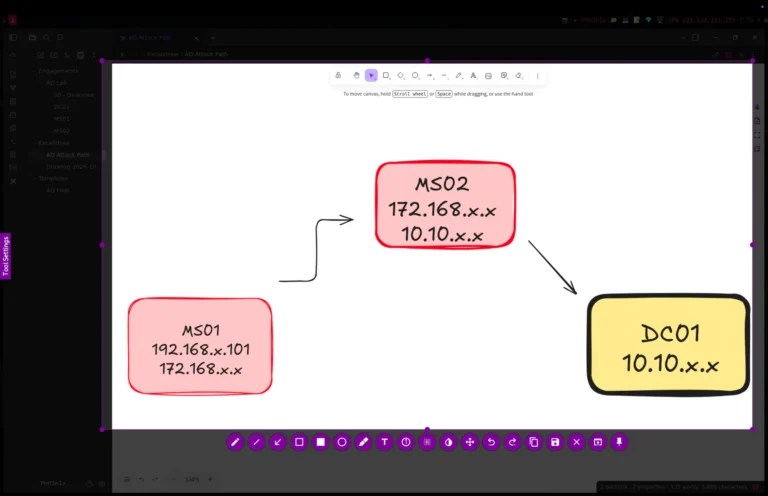
- Excalidraw — draw network diagrams right inside your notes
- Kanban — visual board for tracking what’s done and what’s left
- Code Styler — syntax highlighting in code blocks
The vault name uses your --username, so it’s personalized from the start.

Why Flameshot for Screenshots
During exams and reports, you screenshot everything. Flameshot is the best tool I’ve found for this — region capture with annotations, arrows, highlights, text, all before you save. Way more powerful than a simple PrintScreen.
I bound it to the Print key for a quick region capture and added a bar button too. Right-click the bar button for full-screen to clipboard. On ARM64, Flameshot needed some extra attention during installation to run stably — Ignite handles that automatically.
Why Rofi Over dmenu
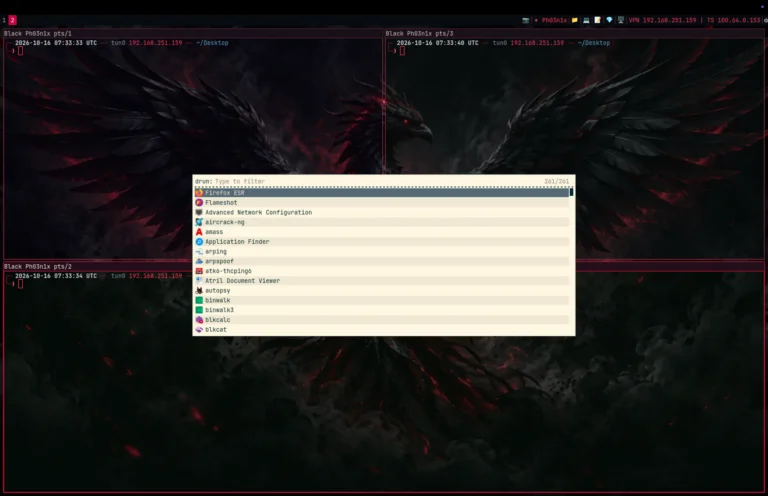
i3 ships with dmenu as the default launcher, but I switched to rofi. It looks better, it’s more configurable, and it supports fuzzy matching — you don’t need to type the exact name of the application. Start typing, and it narrows down. I themed it to match the rest of the desktop so it feels like part of the build, not a bolt-on.
The Custom Prompt
Small detail, but it matters. The zsh prompt is two lines:
- Line 1: UTC timestamp and your tun0 IP
- Line 2: current directory and the input cursor
Why UTC? Because OffSec exam reports need UTC timestamps. Instead of running date -u every time I want to check the time, it’s right there in my prompt. And the tun0 IP is there because I got tired of running ip a | grep tun0 every five minutes to check my VPN. It’s always visible.

The ARM64 Patches
Running on Apple Silicon means ARM64 architecture. Most of Kali works perfectly on ARM64 — the Kali team has done excellent work with ARM support. But some third-party tools were originally built for x86 and haven’t been fully ported yet. Ignite bridges that gap:
- Flameshot — needs a patched install process to run stably on ARM64
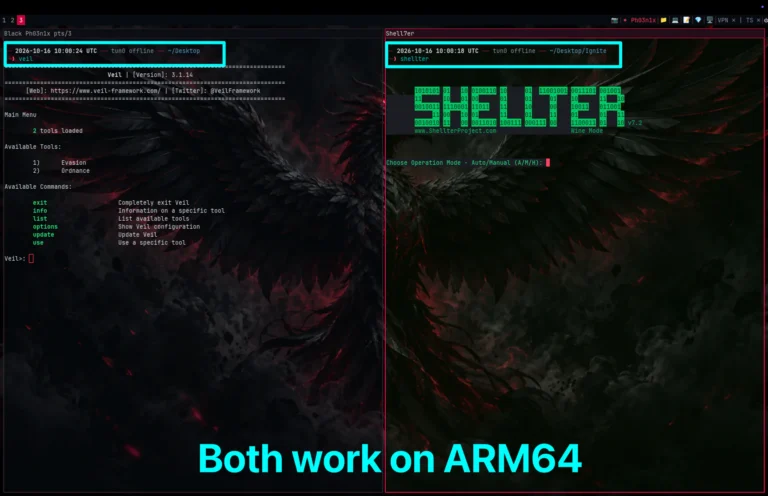
- Veil — the install script needs adjustments for ARM64. Ignite configures it through Docker so it works reliably
- Shellter — runs through Veil’s Docker container. Ignite handles the dependency automatically — enabling Shellter also enables Veil
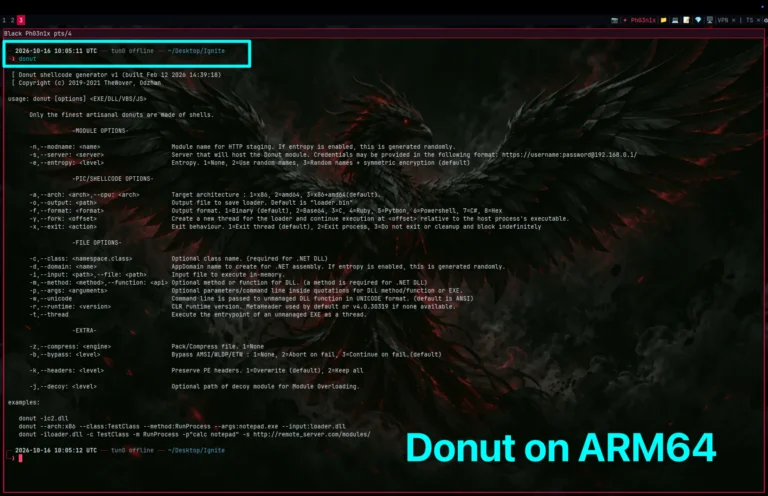
- Donut — x86 binary, so Ignite runs it through QEMU emulation on ARM64 (added this when I did the AI300 course challenges)
- Obsidian — no official ARM64 .deb, so Ignite uses the AppImage
None of this is Kali’s fault — these are third-party tools that need time to catch up with the ARM64 ecosystem. Ignite just automates the workarounds so you don’t have to figure them out yourself.
The Status Bar
I customized the i3blocks bar to have one-click shortcuts for everything I use regularly:
- 📷 Flameshot — left-click for region, right-click for full screen
- ✦ Ph03n1x — my tag
- 📁 Files — Thunar file manager (shift+click opens floating)
- 💻 Code — VS Code OSS for when you need a proper editor
- 📝 Mousepad — lightweight text editor for quick edits
- 💎 Obsidian — one click to open your vault
- 🖥 Remmina — RDP client for when you need a GUI session on a target
- VPN · TS — shows both tun0 and tailscale0 IPs, click to copy to clipboard
- 🔋 Battery — because laptops
- ⏻ Power — left-click locks screen, right-click for shutdown/reboot menu
The VPN block is one of my favorites. It shows VPN 10.10.14.5 | TS 100.64.0.3 when both interfaces are up, or VPN ✗ | TS ✗ when they’re down. One click copies the IP — no more typing ip a to grab it for a reverse shell.
[IMAGE: screenshots/bar.png]
The bar — everything I need, one click away.
[IMAGE: screenshots/vpn-block.png]
VPN block — tun0 and tailscale0 at a glance.


Why Remmina
Some OffSec labs and exams require RDP access to Windows targets. Remmina is a solid, full-featured RDP client that supports NLA authentication, shared clipboard, drive redirection — everything you need. I added it to the bar so it’s always one click away.
Why Veil + Shellter
I added Veil and Shellter mainly to help students working through PEN-200. I kept seeing people lose hours trying to install them, fix broken dependencies, or make them run correctly — especially on ARM64 systems such as Kali running on Apple Silicon.
The goal of Ignite is to remove that setup friction. Students should be able to spend their lab time understanding payload generation and antivirus-evasion concepts in authorized environments, rather than fighting installation scripts and architecture compatibility problems.
Ignite configures Veil through Docker and runs Shellter using the same container, providing a more consistent setup across systems. Because Shellter depends on Veil’s environment, selecting Shellter automatically enables Veil as well.
Both tools remain optional. If you do not need them, you can exclude them using --skip-veil.
Why Donut
Donut converts .NET assemblies, PE files, and other executables into position-independent shellcode. It’s one of those tools you don’t need every day, but when you need it (AI300, PEN300), nothing else does the job. Since it’s an x86 binary, Ignite sets up QEMU emulation so it runs on ARM64.
How to Install
chmod +x Ignite
./Ignite
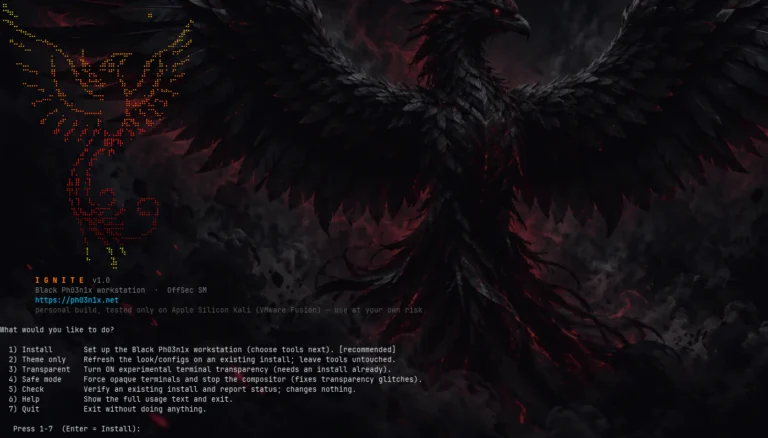
The installer shows an animated phoenix and an interactive menu where you can toggle components on and off. Pick what you want, set your username, and hit Enter.
[IMAGE: screenshots/installer.png]
The installer — interactive menu with component toggles.
Requirements
- Kali Linux on ARM64 / Apple Silicon (tested with VMware Fusion)
- Run as your normal user, not root — the script uses
sudowhere needed - Internet connection for package downloads
After install, log out and back into i3. Run ./Ignite --check to verify everything is in place.
Get Ignite
GitHub: https://github.com/Ph03n1x-sec/Ignite
Licensed under GPL-3.0 — use it, fork it, improve it. Just keep it open source.
This is my personal build. I use it every day. If it helps you in your OffSec journey, that’s exactly what it’s for.